Guide
Journeys is for writing branching journeys, where each Step is one screen holding text and images, and sharing them by link. Authors sign in and build; Participants walk what is published without an account. This page covers both.
For Authors
An Author is a signed-in user who writes Journeys. Everything an Author makes lives in a Project, and every Member of a Project can do everything within it. This section follows a Journey from the first sign-in to reading what Participants did.
Sign in
Go to Sign in and pick Google or Discord. Journeys never sees a password; the provider tells it your name, email address, and picture, and you can change the name and picture later from Settings in your account menu.
Create a Project
Your projects page lists every Project you belong to. Press New project, give it a title, and you land on it. A Project has a public page that lists its Journeys with a live Published Version, so a set of related Journeys can be shared with one link.
Add Members
Members are the Authors you share a Project with. Add another Author from the Project’s Members tab by the email address they signed in with; every Member is equal and can do everything, including adding and removing Members.
Create a Journey
From a Project, press New journey and give it a title. A new Journey begins with one Step, its Start, and opens on the canvas. Until you publish it, everything you do is on the Draft, which no Participant can see.
Build it
You build a Journey on its Editor tab: the canvas draws its shape, the Step panel holds the words and images of one Step, and a Prompt lets a Step ask a question.
The canvas
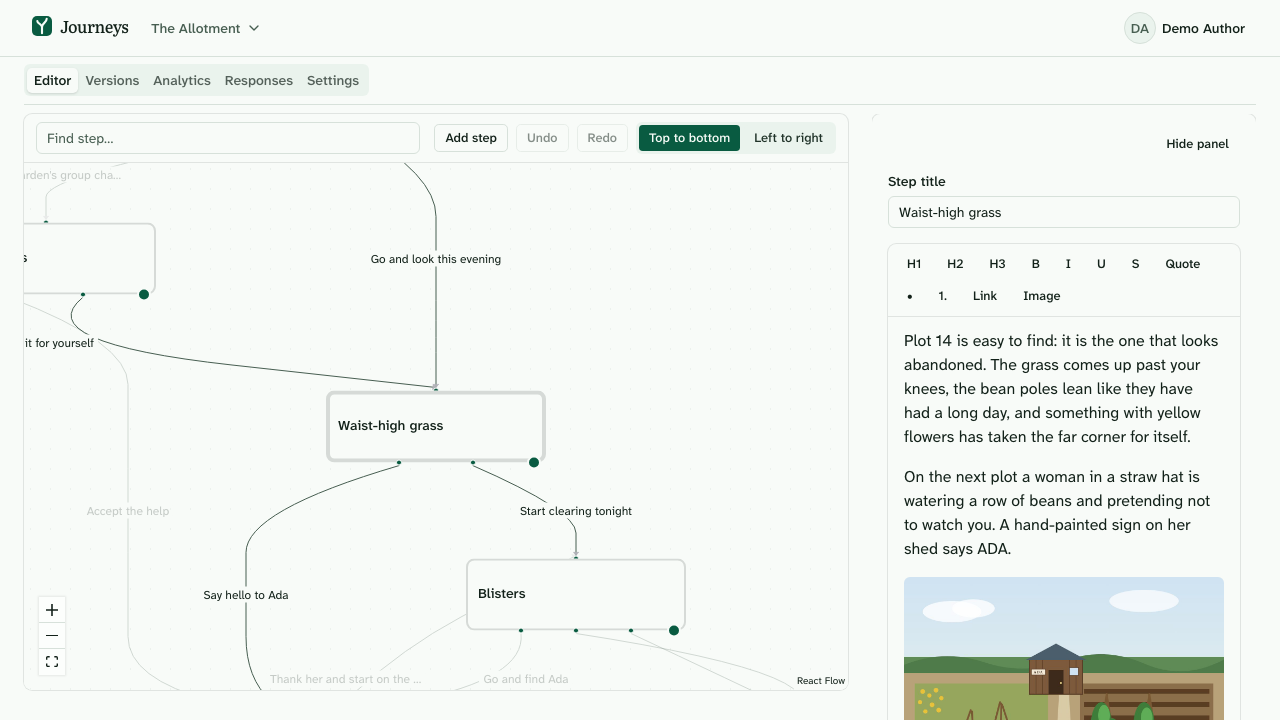
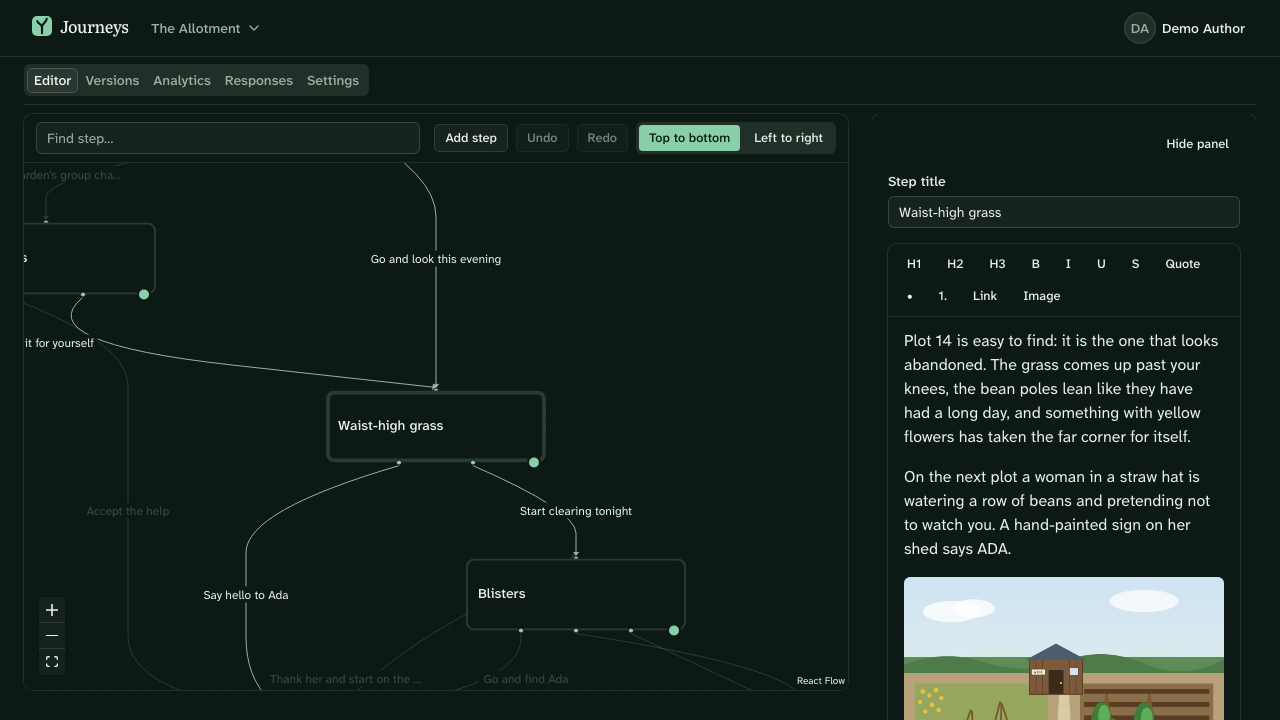
The canvas draws the Draft as a map: every Step is a box, every Choice an arrow from the Step it belongs to into the Step it leads to. The map is laid out for you, top to bottom or left to right, and never by hand; it fits itself into view when it opens and whenever you turn it. Click a box to open that Step in the panel.
- Steps and Choices. A Step is one screen a Participant reads; a Choice is one way onward from it. A Step with no Choices is an Ending. Each box carries Step actions: add the next Step, duplicate this one, zoom to it, make it the Start, or delete it.
- Drag a Choice onto bare map. Every box has a connect dot. Drag from it onto empty map and let go: a new Step is made there and a Choice points at it. Drag from it onto another box to draw a Choice there instead. To move a Choice that already exists, take hold of its arrow’s head and drop it on the box it should lead to.
- Direction. Turn the whole map between top-to-bottom and left-to-right. The direction is stored on the Draft and shared by the Project’s Members.
- Undo and redo. Every move on the map and in the panel can be undone, with the usual keyboard shortcuts or the Undo and Redo buttons above the map.
- Hide the panel to give the map the whole width. Your browser remembers whether the panel is hidden; it isn’t saved on the Journey.
The Step panel
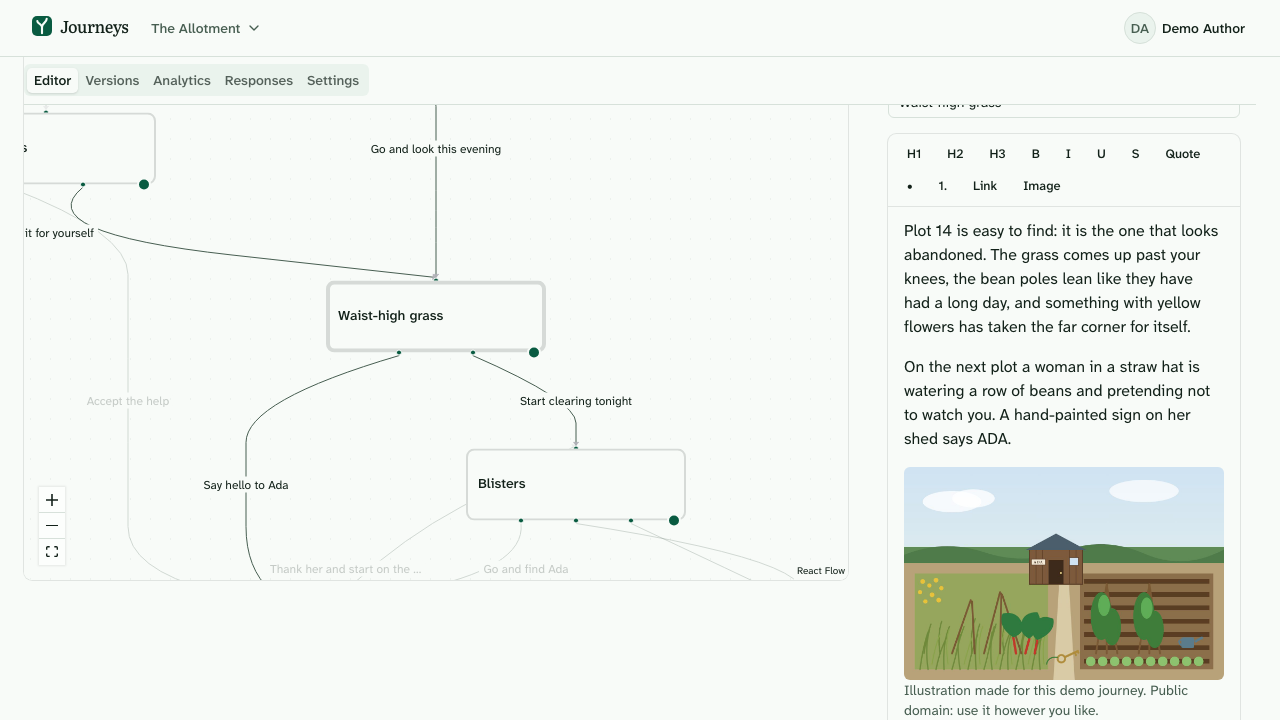
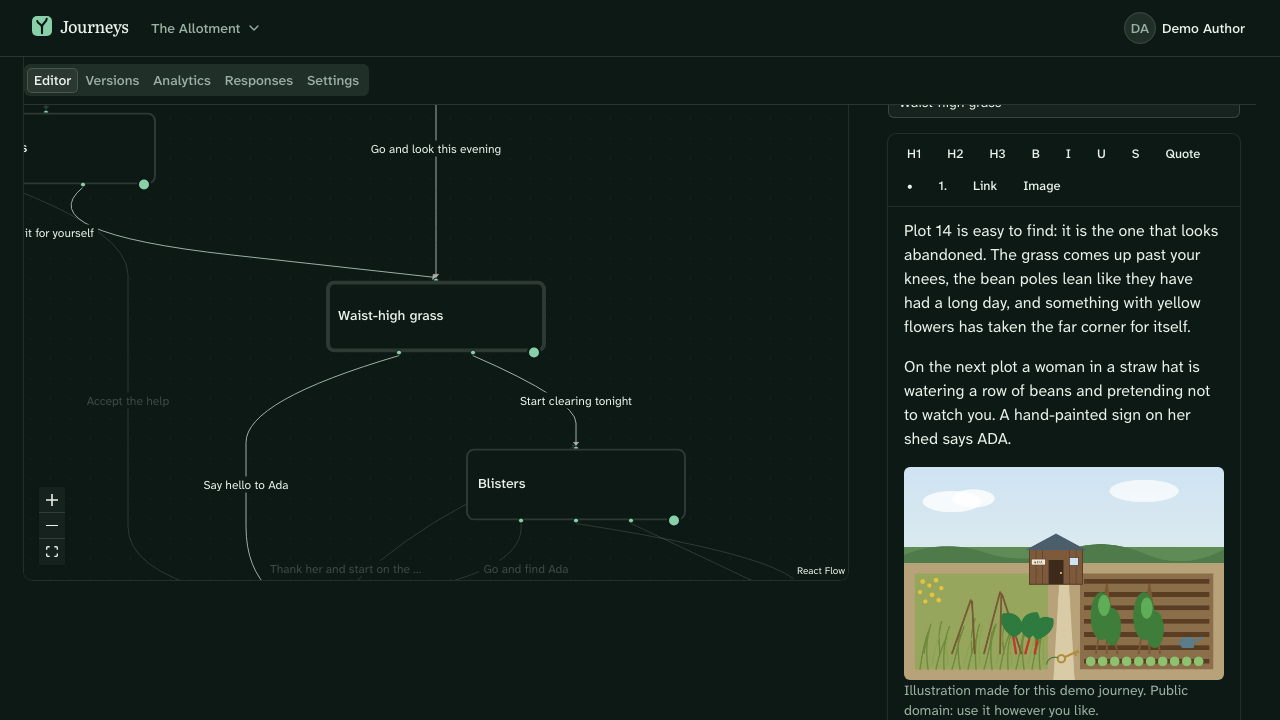
The panel holds the open Step: its title, its content, its Choices, and, once it is an Ending, its Outcome. Content is rich text: headings, lists, quotes, emphasis, and images. An image needs alt text for people who cannot see it, and can carry a Caption beneath it, where a credit is simply written in. The panel saves as you go; a status line in the editor’s header tells you when.
Prompts
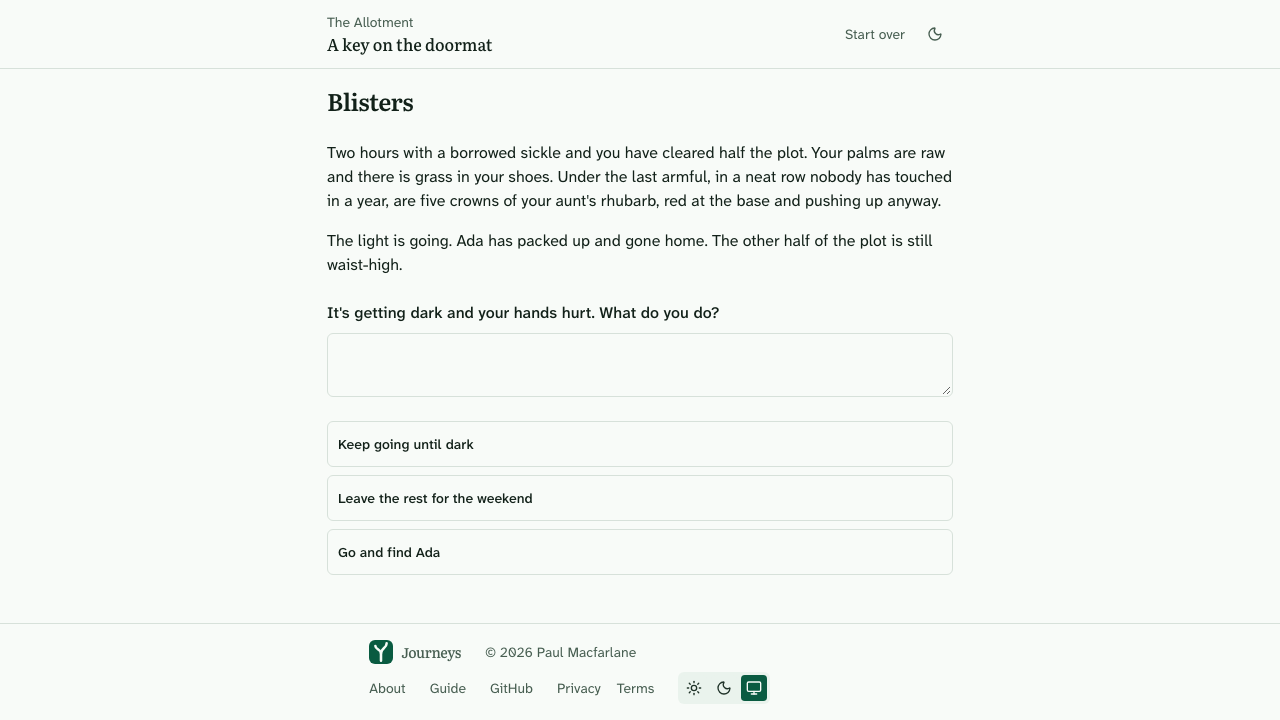
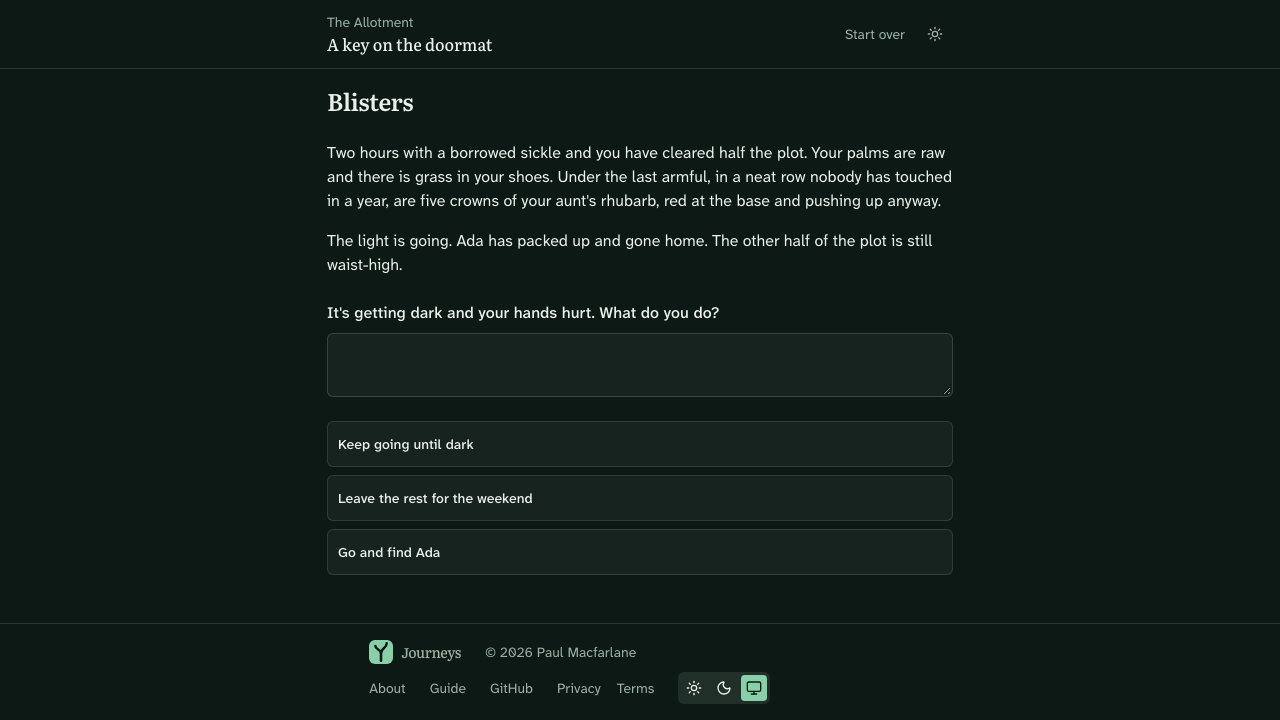
A Step can carry a Prompt: a free-text question a Participant may answer before making a Choice. The Response is kept with the Run for the Project’s Members to read; it never changes which Choice the Participant takes.
Customise it
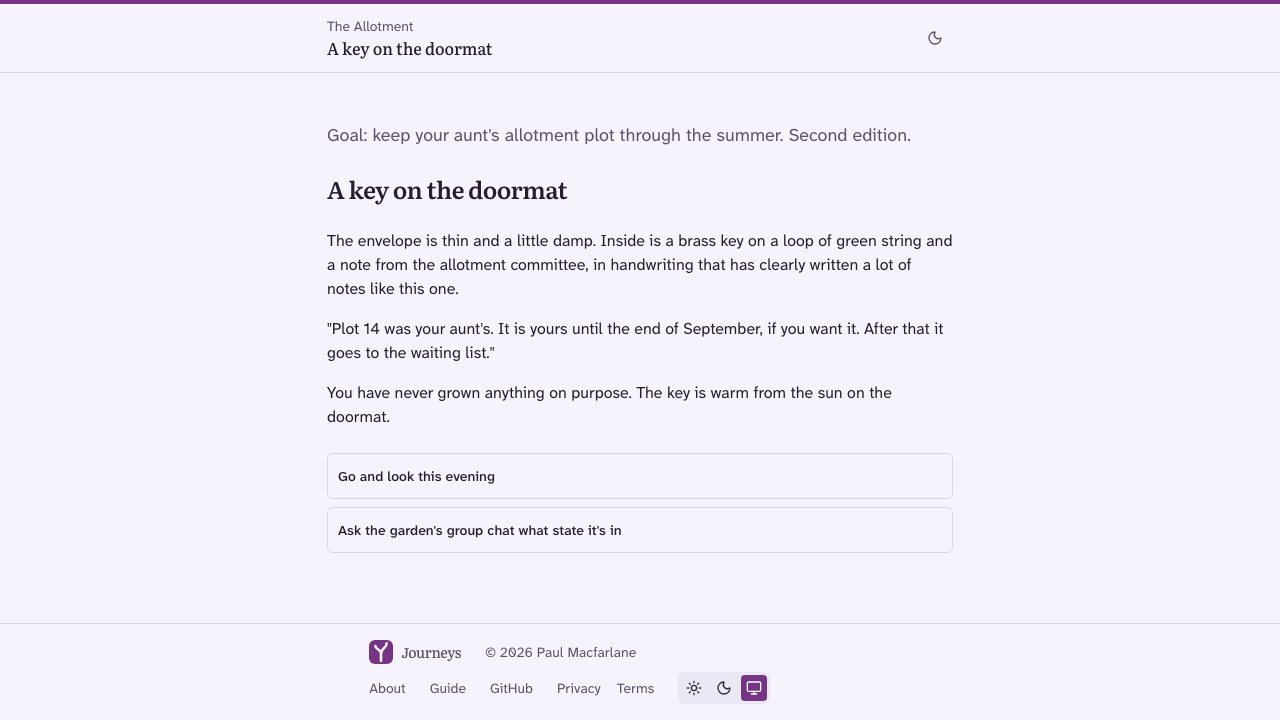
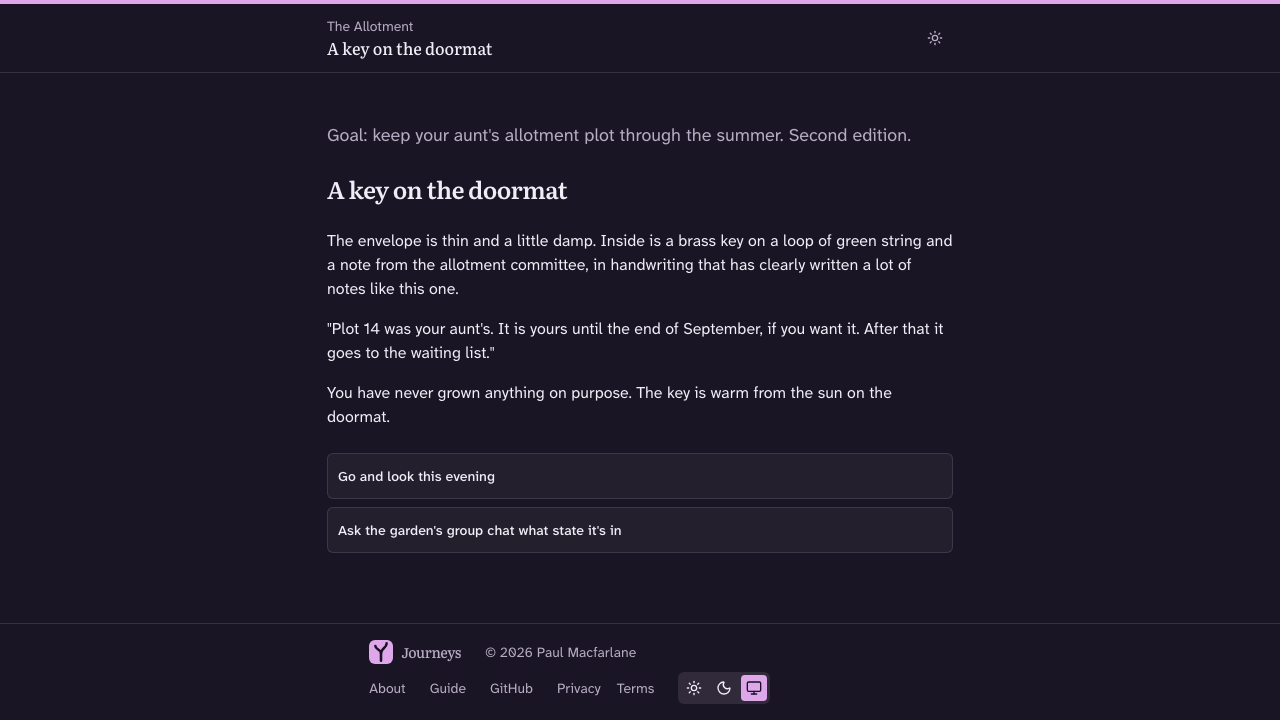
A Theme is a small set of colours and a font applied to what Participants see. Set one on the Project’s Settings tab and every Journey in it follows; a Journey can carry its own instead, from the Journey’s Settings tab. A Journey’s title and description are edited at the top of its own page.
Preview
Preview, on the Journey’s page, walks the Draft the way a Participant would, in the Journey’s Theme, and records nothing. Use it to check a path before anyone else can walk it.
Publish
Publishing makes a Published Version from the Draft as it stands. A Published Version never changes: at most one is live to Participants at a time, and every earlier one is kept.
Share the link
A live Journey has one link, shown on its page with a copy button. That link is the whole of discovery: nobody finds a Journey except by being given it. The Project’s public page has a link too, listing every Journey in it that is live.
Edit after publishing
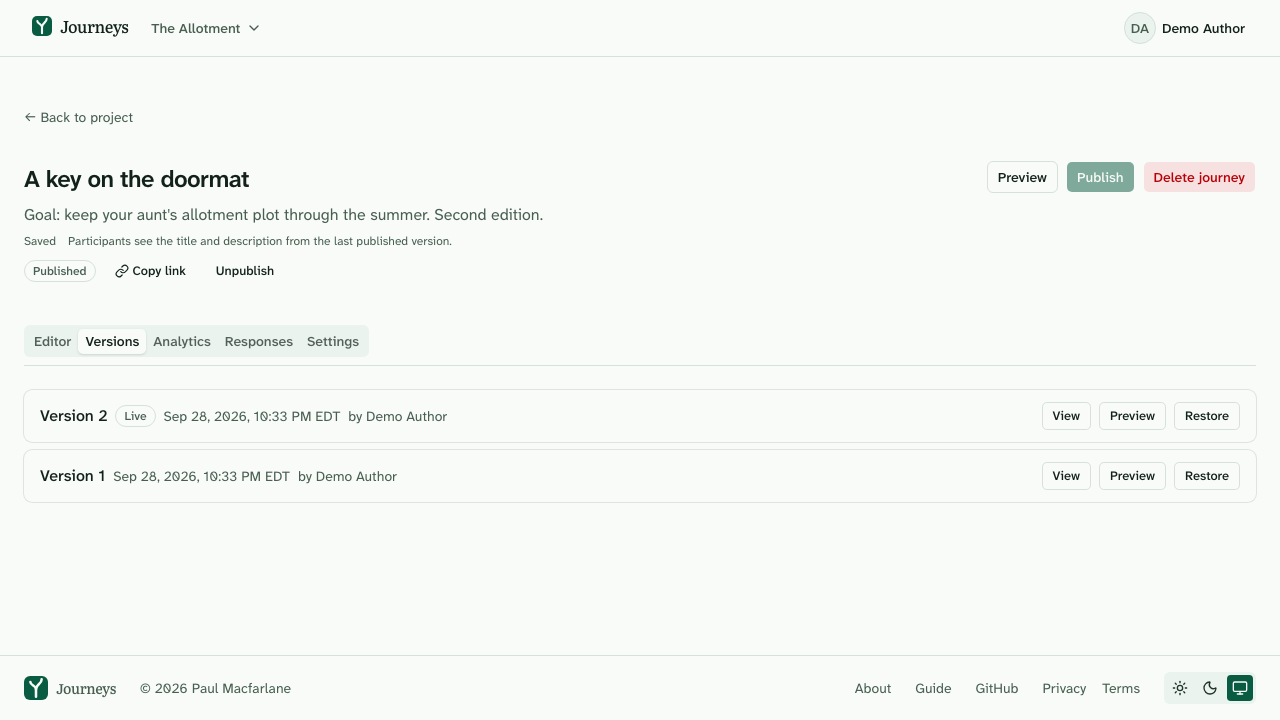
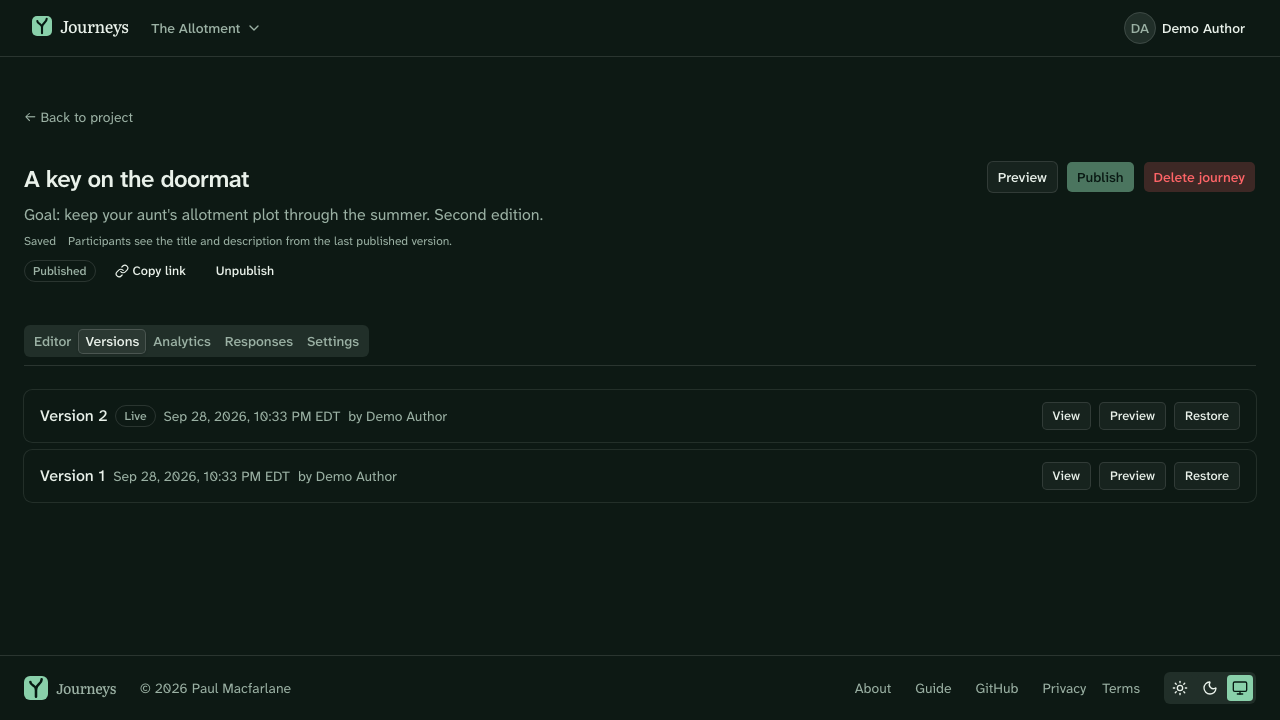
Keep editing after you publish: the Draft stays private, and Participants go on walking the live Published Version until you publish again, which makes a new Version. The Versions tab lists every Published Version. From there you can View an earlier one or Preview it, and restore any of them into the Draft to keep editing from that point.
Read Analytics and Responses
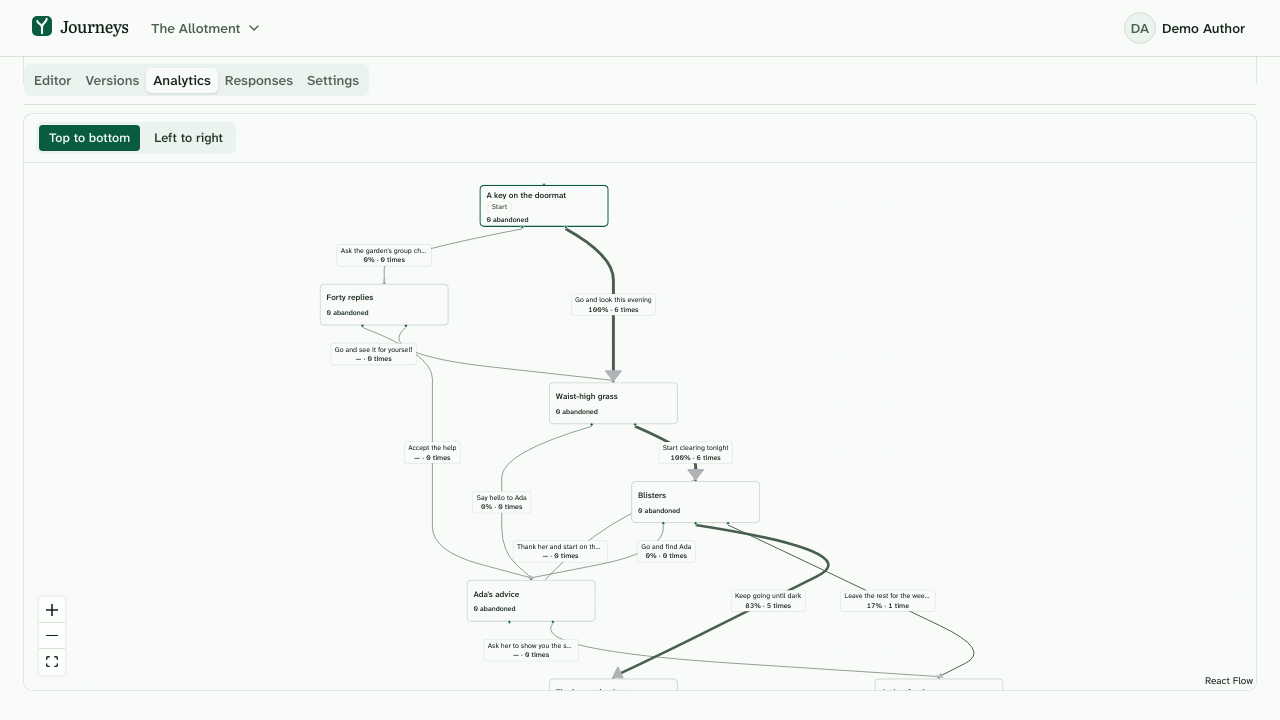
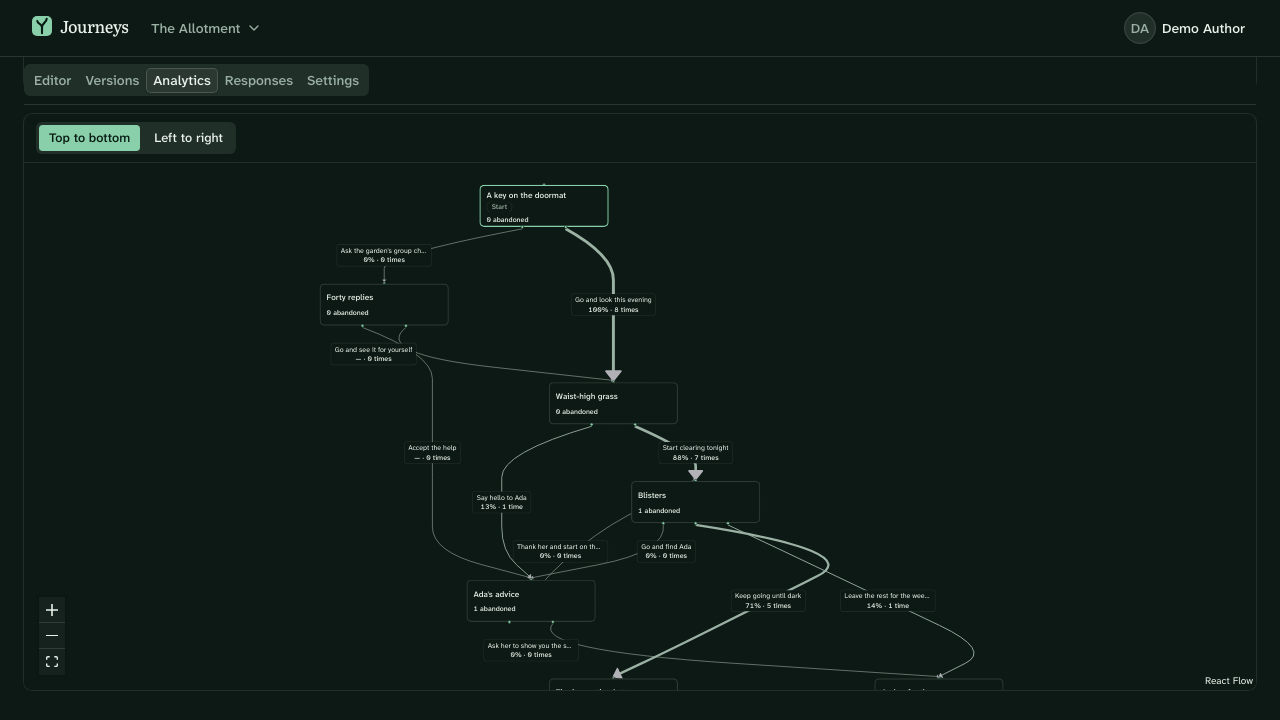
The Analytics tab draws a Published Version the same way the canvas does, read-only, with the number of Runs on every box and every arrow, so you can see where Participants went and where they stopped. Endings that share an Outcome are counted together. Pick a Version to see its Runs; a Run always belongs to the Version it began on.
The Responses tab lists what Participants typed into the Journey’s Prompts, one list per Step that asks one, with nothing that says who wrote which, or when.
Your Author page
From Settings in your account menu you can turn on your Author page, a public page with your name, picture, bio, and links, together with the Projects you belong to that have a live Journey. It is off until you turn it on.
For Participants
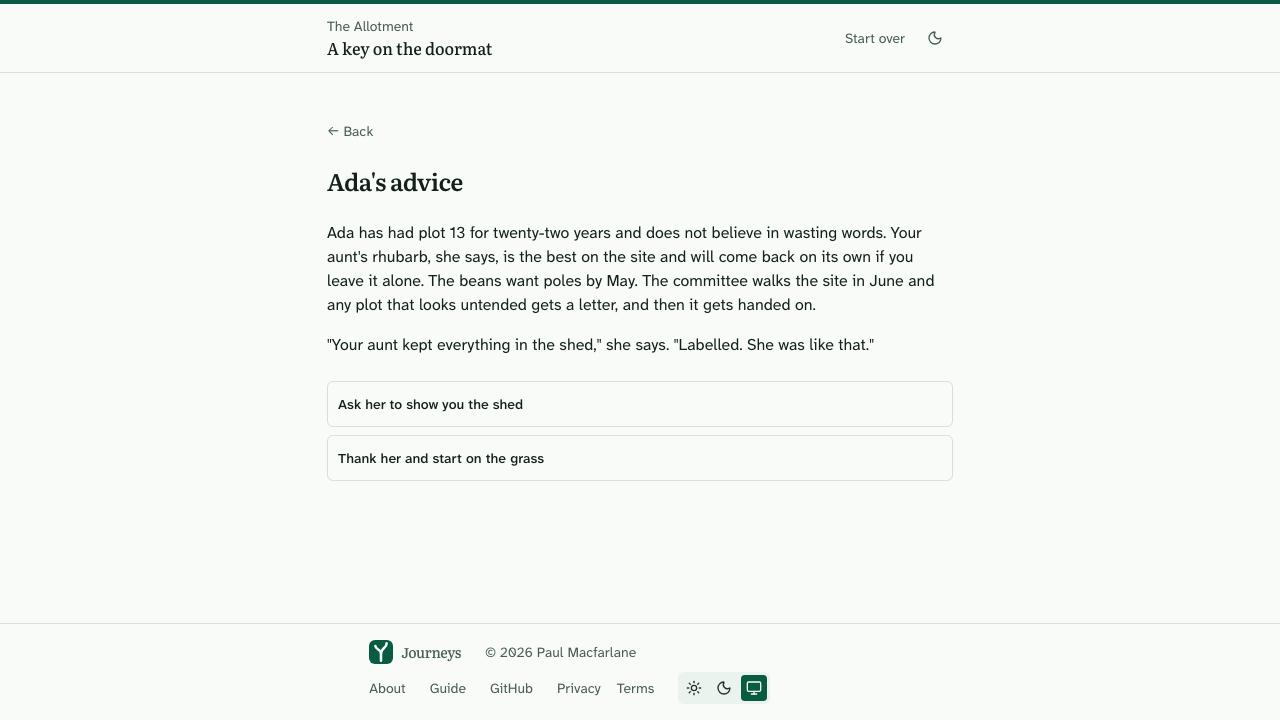
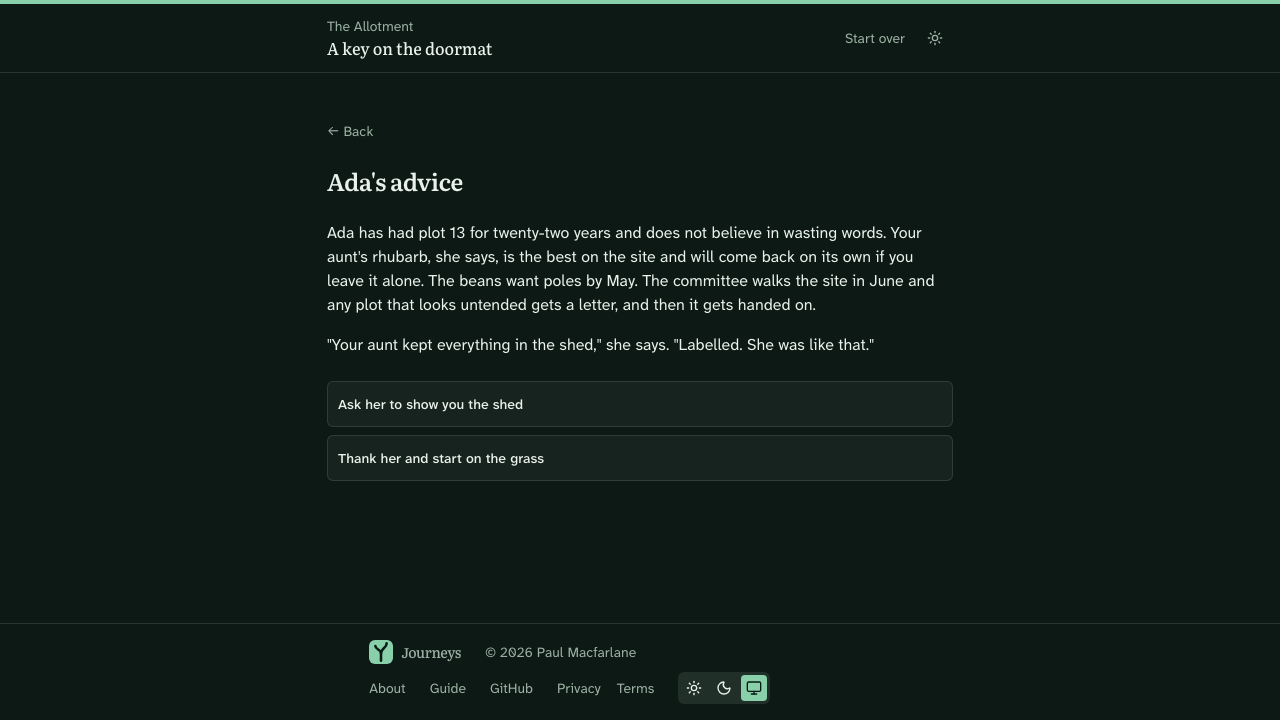
A Participant is anyone who opens a Journey’s link. You read a Step, make a Choice, and live with where it takes you, until you reach an Ending.
- No account. There is nothing to sign up for and nothing to sign in to. A walk stores nothing that identifies you: no name, no email address, no IP address. It stores which Steps you visited, which Choices you made, and any Response you type into a Prompt, which the Journey’s Authors can read.
- A Run. Your walk becomes a Run on your first Choice, not when you open the Journey, and it is pinned to the Published Version you started on. A cookie in your browser remembers the Run so a reload or a return picks up where you left off.
- Going back. Your browser’s Back returns you to an earlier Step to make a different Choice. That is a Backtrack: your Run’s path becomes the route you are on now, not every detour.
- Endings. A Step with no Choices is an Ending, and the Journey tells you so. From there, or from any Step with Start over in the header, you can start again from the Start; a new Run begins with your first Choice.
Good to know
- Discovery is link-only. There is no directory and no search. A Journey or a Project is found only by the link its Authors hand out.
- A Published Version never changes under a Participant. Publishing again makes a new Version; a Run in progress stays on the one it began on, so nobody is moved mid-walk.
- Responses are for Members only. What a Participant types into a Prompt is readable by the Project’s Members on the Journey’s Responses tab, and shown to no one else, never to another Participant.
- What is stored. The privacy policy lists it in full, for Authors and Participants alike.